
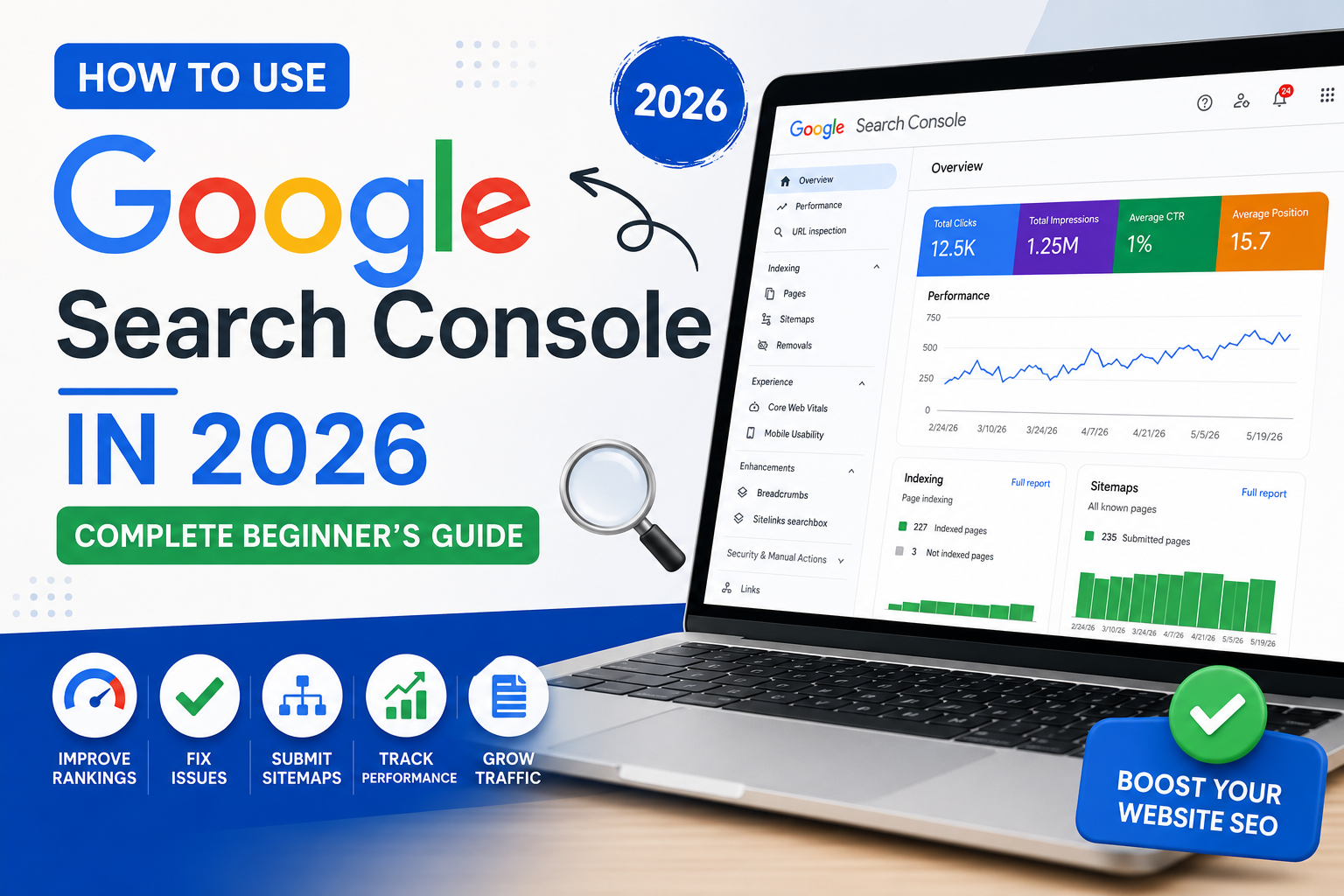

How to Use Google Search Console in 2026: Complete Beginner’s Guide
Introduction
There is a free tool sitting in your browser that can tell you exactly which of your pages Google has indexed, which keywords are driving traffic, which pages have critical errors, and how your site performs on mobile versus desktop.
It is called Google Search Console — and if you are running a blog or website without actively using it, you are making SEO decisions without access to the most important data available to you.
Google Analytics tells you what happens after people arrive at your site. Google Search Console tells you what happens before they click — what keywords your pages appear for, what position they rank in, and what technical issues are holding your rankings back.
This complete guide walks through everything you need to know about Google Search Console in 2026: how to set it up, what each report actually means, and how to use the data to make concrete improvements to your site.
If you have already set up your blog and are working on ranking it, this guide works alongside our On-Page SEO Complete Checklist 2026 and our Internal Linking Strategy guide — all available on Finzaro360.
Table of Contents
- What is Google Search Console?
- Why Every Website Owner Needs GSC
- How to Set Up Google Search Console — Step by Step
- Verifying Your Website Ownership
- Submitting Your Sitemap
- Understanding the Performance Report
- Using the URL Inspection Tool
- The Coverage Report — Finding and Fixing Indexing Issues
- Core Web Vitals — What GSC Tells You
- Mobile Usability Report
- Links Report — Understanding Your Backlink Data
- Manual Actions — What They Are and How to Handle Them
- How to Use GSC Data to Improve Your Rankings
- Common GSC Mistakes Beginners Make
- GSC vs Google Analytics — Understanding the Difference
- Frequently Asked Questions
- Conclusion
- Disclaimer
What is Google Search Console?
Google Search Console (GSC) is a free web service provided by Google that gives website owners insight into how Google crawls, indexes, and ranks their site.
Think of it as a communication channel between Google and your website. When Google has a problem crawling your site, GSC tells you. When your pages start ranking for new keywords, GSC records it. When Google applies a manual penalty to your site, GSC delivers the notification.
It does not manipulate your rankings — it observes and reports. But the data it gives you is uniquely authoritative because it comes directly from Google’s own systems. No other SEO tool — paid or free — has access to this data at the source.
Previously called Google Webmaster Tools, Google Search Console has been the essential free SEO tool for website owners since its launch. In 2026, it remains the first tool you should set up when starting a new website and the one you should check most consistently as your site grows.
Why Every Website Owner Needs GSC
You could run a blog without Google Search Console. Plenty of people do. But you would be doing it blind.
Here is what GSC tells you that you simply cannot get elsewhere:
Which keywords your pages rank for. Not estimates from a third-party tool — actual Google data showing the exact search queries that triggered your pages to appear in search results, how many times they appeared (impressions), and how many clicks they generated.
Which pages are indexed. You might have published fifty articles and assume Google has indexed all of them. GSC shows you the exact indexing status of every URL on your site — and why any pages are excluded.
Which pages have technical errors. Crawl errors, mobile usability issues, Core Web Vitals problems — GSC identifies specific pages with specific issues so you can fix them.
Your click-through rates. Knowing your average CTR for different search positions tells you whether your title tags and meta descriptions are compelling enough to earn clicks from the people who see them.
Your link data. GSC shows which external websites link to you and which of your pages receive the most internal links.
None of this data requires a paid subscription. It is free. The only requirement is that you own and verify the website.
How to Set Up Google Search Console — Step by Step
Setting up Google Search Console takes less than ten minutes. Here is exactly how to do it.
Step 1: Go to search.google.com/search-console
Open your browser and navigate to search.google.com/search-console. You will need to be signed into a Google account.
Step 2: Add Your Property
Click “Add property” or “Start now.” You will be presented with two property type options:
Domain property: Covers your entire domain across all protocols (http, https) and all subdomains. This is the recommended option for most users. You will need to verify via DNS record.
URL prefix property: Covers only URLs that start with the exact URL you enter. Easier to verify through multiple methods but less comprehensive.
For most bloggers, the Domain property is the better choice because it captures all your site’s data in one place.
Step 3: Verify Ownership
Google needs to confirm you own the website before giving you access to its data. The verification method depends on which property type you chose.
Verifying Your Website Ownership
For Domain property (DNS verification):
- Copy the TXT record that Google provides
- Go to your domain registrar (the service where you bought your domain)
- Navigate to DNS settings
- Add the TXT record provided by Google
- Return to GSC and click Verify
DNS changes can take a few hours to propagate. If verification fails initially, wait a few hours and try again.
For URL prefix property — multiple options:
- HTML file upload (download a file from Google and upload it to your website’s root directory)
- HTML tag (add a meta tag to your homepage’s head section — Rank Math and Yoast SEO both make this straightforward)
- Google Analytics (if GA is already installed on your site)
- Google Tag Manager (if GTM is set up)
- DNS TXT record (same as Domain property method)
For WordPress users, the HTML meta tag method through an SEO plugin is typically the fastest. In Rank Math, go to General Settings → Webmaster Tools and paste your GSC verification code there. In Yoast, go to SEO → General → Webmaster Tools.
Submitting Your Sitemap
Once your property is verified, the first practical action to take is submitting your sitemap.
A sitemap is an XML file that lists all the URLs on your website. Submitting it to GSC helps Google discover and index your content more efficiently — particularly useful for new sites and for pages that might not yet have many internal links pointing to them.
How to submit your sitemap:
- In GSC, click “Sitemaps” in the left sidebar
- In the “Add a new sitemap” field, type your sitemap URL
For most WordPress sites using Rank Math or Yoast SEO, your sitemap URL is: yoursite.com/sitemap_index.xml or yoursite.com/sitemap.xml
- Click Submit
GSC will begin processing your sitemap and will show you how many URLs were submitted versus how many were indexed. This is one of the most useful early indicators of whether Google is successfully discovering your content.
If you are running a WordPress blog and want to ensure your SEO fundamentals are solid before diving deep into GSC data, our On-Page SEO Complete Checklist 2026 covers everything that needs to be in place at the page level.
Understanding the Performance Report
The Performance report is the section you will visit most often in GSC. It is where your actual search traffic data lives.
The Four Core Metrics
Total Clicks The number of times users clicked a link to your site from Google search results. This is your actual organic traffic — the real number, not an estimate.
Total Impressions The number of times a URL from your site appeared in Google search results (whether the user scrolled to see it or not). High impressions with low clicks indicate a CTR problem — your pages are showing up but people are not clicking.
Average CTR (Click-Through Rate) The ratio of clicks to impressions expressed as a percentage. A CTR of 5% means that for every 100 times your page appeared in search results, 5 people clicked it.
Average Position The average ranking position of your URLs in Google search results for the queries shown. Position 1 means first result. Position 10 means last result on the first page. Positions above 10 are on page 2 and beyond.
How to Read the Performance Data
The default view shows all data. To make it useful, you need to filter and segment it.
Filter by page: See which specific articles are driving the most traffic and which keywords those articles are ranking for.
Filter by query: See which search terms are generating impressions and clicks, then identify opportunities to improve content for high-impression, low-CTR queries.
Filter by date: Compare different time periods to identify trends — is traffic growing, declining, or flat?
Filter by country: See which countries your traffic is coming from — useful if you are writing for a specific geographic audience.
The CTR Opportunity
One of the most actionable insights from the Performance report is identifying pages that appear in high positions (positions 1–5) but have below-average CTR. This usually means your title tag or meta description is not compelling enough to earn clicks relative to competing results.
Look for pages with:
- High impressions (people are seeing them)
- Position 1–10 (they are on the first page)
- Low CTR (people are not clicking)
Then improve the title tag and meta description for those pages. This is often one of the fastest ways to increase organic traffic without improving rankings.
Using the URL Inspection Tool
The URL Inspection tool is essential for understanding exactly what Google knows about any specific page on your site.
How to use it:
- Click “URL Inspection” in the left sidebar
- Paste any URL from your site into the search bar
- Press Enter
GSC will show you:
- Whether the URL is indexed in Google
- When Google last crawled it
- What Googlebot saw when it crawled it
- Any issues Google encountered with the page
- Whether the page is eligible for rich results based on structured data
The most useful function: After you publish a new article or make significant updates to an existing one, use the URL Inspection tool and click “Request Indexing.” This signals to Google that the page has been updated and prompts a recrawl faster than waiting for Google’s natural crawl cycle.
This is particularly useful for time-sensitive content or for new articles on sites with lower crawl budgets.
The Coverage Report — Finding and Fixing Indexing Issues
The Coverage report shows the indexing status of all URLs Google has discovered on your site. This is where you identify pages that should be indexed but are not — and understand why.
The Four Status Categories
Valid: Pages that are indexed normally. This is what you want for all your important content.
Valid with warnings: Pages that are indexed but have issues Google wants you to be aware of — these should be investigated and resolved where possible.
Error: Pages that Google tried to index but could not, due to technical problems like 404 errors, server errors, or redirect issues. These require attention.
Excluded: Pages that are not indexed, either because Google chose not to index them or because you explicitly told Google not to. Common exclusions include duplicate content, pages blocked by robots.txt, noindex pages, and pages that redirect.
Common Issues to Fix
404 errors: Pages that return “not found” — either because you deleted content without redirecting, or because there are broken links pointing to non-existent URLs. Fix by setting up 301 redirects from deleted pages to relevant existing content.
Redirect errors: Redirect chains or loops that prevent Google from reaching the final destination. Simplify your redirect structure.
Soft 404s: Pages that return a 200 OK status code but actually have very thin or no content — Google treats these as 404-like. Add substantial content or remove these pages.
Blocked by robots.txt: If important pages are blocked in your robots.txt file by accident, Google cannot index them. Review your robots.txt carefully.
Noindex: If a page has a noindex meta tag that should not have one, remove it. Sometimes WordPress plugins or theme settings add noindex to categories or archives — verify your settings.
Core Web Vitals — What GSC Tells You
Core Web Vitals are a set of page experience metrics that Google uses as ranking signals. GSC’s Core Web Vitals report shows you how your pages perform on these metrics for real users.
The three Core Web Vitals:
LCP (Largest Contentful Paint): How long it takes for the main content of a page to load. Target: under 2.5 seconds.
INP (Interaction to Next Paint): How quickly your page responds to user interactions. This replaced FID (First Input Delay) as a Core Web Vital. Target: under 200ms.
CLS (Cumulative Layout Shift): How much your page content shifts around while loading — unexpected shifts create poor user experience. Target: below 0.1.
Pages are classified as Good, Needs Improvement, or Poor for each metric, separately for mobile and desktop.
The most important thing to know: poor mobile Core Web Vitals affect your rankings. Mobile performance is Google’s priority, not desktop performance.
If you see significant numbers of pages in the “Poor” category in GSC’s Core Web Vitals report, prioritise fixing those — particularly on mobile. Common improvements include optimising image sizes, reducing render-blocking scripts, and fixing layout shift issues from images without defined dimensions.
Mobile Usability Report
Given that Google uses mobile-first indexing — meaning it primarily uses the mobile version of your site for ranking — the Mobile Usability report in GSC is important to check regularly.
Common mobile usability issues:
Text too small to read: Ensure your font sizes are readable on mobile without zooming.
Clickable elements too close together: Buttons, links, and menu items need adequate spacing for touch interaction.
Content wider than screen: Horizontal scrolling on mobile is a poor experience — ensure all content fits within the viewport.
Viewport not configured: A missing or incorrect viewport meta tag prevents proper mobile display.
For WordPress sites built with Elementor or similar page builders, check on actual mobile devices — not just browser developer tools — to identify usability issues that automated scanning might miss.
Links Report — Understanding Your Backlink Data
GSC’s Links report shows:
External links: Which websites are linking to your site, and which of your pages receive the most external backlinks.
Internal links: Which of your pages receive the most internal links from other pages on your own site.
Top linked pages: Your most externally linked content — often your most authoritative pages.
Top linking sites: Which domains are linking to you most frequently.
This data is useful for understanding your link building progress and for identifying which content attracts the most backlinks organically.
The Internal Links data is particularly useful for identifying orphan pages — content that receives very few internal links and therefore may not be crawled or ranked effectively. Pages with zero or very few internal links pointing to them need attention. See our Internal Linking Strategy guide for how to address this systematically.
If you are actively building backlinks through guest posting, this report helps you track progress. For strategies on acquiring quality backlinks, our Free Backlinks guide and Guest Posting guide provide practical frameworks.
Manual Actions — What They Are and How to Handle Them
A Manual Action in GSC means a Google employee has reviewed your site and determined it violates Google’s Search spam policies. This results in a direct penalty — reduced rankings or removal from Google’s index for specific pages or your entire site.
Manual Actions appear in the left sidebar under “Security & Manual Actions.”
If your site has no Manual Actions, you will see “No issues detected” — which is what every site owner wants to see.
Common reasons for Manual Actions include:
- Unnatural link patterns (buying or participating in link schemes)
- Thin or automatically generated content
- User-generated spam
- Pure spam
- Cloaking (showing different content to Google than to users)
If you receive a Manual Action:
- Read the specific description carefully
- Identify and fix the underlying problem
- Make genuine corrections — not superficial ones
- Submit a Reconsideration Request through GSC
Recovery from Manual Actions requires genuine remediation, not just a reconsideration request without fixing the underlying issue. The process can take weeks or months.
How to Use GSC Data to Improve Your Rankings
With GSC data in hand, here are the most actionable improvements you can make:
Find your “almost ranking” keywords. In the Performance report, filter for queries where your average position is 5–15. These are pages close enough to the top that targeted improvements could move them up significantly. Improve the content depth, update the information, and add more relevant internal links.
Fix pages with high impressions and low CTR. As discussed above — these pages are visible but not compelling enough. Rewrite the title tag and meta description to be more specific and benefit-focused.
Request indexing for new content. After publishing new articles, use URL Inspection to request indexing rather than waiting for Google’s next crawl cycle.
Fix Coverage errors immediately. 404 errors and redirect issues in the Coverage report should be resolved promptly — they represent lost SEO value.
Monitor Core Web Vitals trends. If you update your theme or make site changes, watch CWV scores in GSC to ensure you have not introduced performance regressions.
Track your domain authority proxy. While GSC does not show DA, watching your total impressions and clicks over time gives you a genuine measure of your site’s growing search presence.
Common GSC Mistakes Beginners Make
Not setting it up at all. The most common mistake. Set it up the day you launch your site.
Ignoring the data. Setting up GSC and never checking it means you are missing actionable information about what Google is doing with your site.
Panicking about normal fluctuations. Search rankings fluctuate. A single day of lower clicks is not an emergency. Look at trends over weeks and months.
Not submitting the sitemap. Without a sitemap submission, GSC cannot show you comprehensive indexing data and Google may take longer to discover new content.
Misreading Average Position. Average Position is an average across all queries for that page — it does not mean your page ranks at that position for every keyword. Use filters to see position data for specific queries.
Not acting on Coverage errors. Seeing red numbers in the Coverage report and ignoring them means technical issues are going unresolved.
GSC vs Google Analytics — Understanding the Difference
These two tools are often confused by beginners, but they measure fundamentally different things.
| Aspect | Google Search Console | Google Analytics |
|---|---|---|
| Primary focus | How Google sees your site | How users behave on your site |
| Traffic data | Pre-click (impressions, position, CTR) | Post-click (sessions, pageviews, bounce rate) |
| Keyword data | Actual search queries from Google | Not available (privacy limitations) |
| Technical issues | Crawl errors, indexing, CWV | Not covered |
| Backlink data | Yes, from Google’s index | No |
| User behaviour | Not covered | Yes (time on page, conversions, etc.) |
Use both. They answer different questions. GSC tells you what Google thinks of your site. GA tells you what people do when they arrive.
Frequently Asked Questions
Q: Is Google Search Console free? Yes. Google Search Console is completely free for all website owners. There are no paid tiers or premium features — everything is available at no cost.
Q: How long does it take for GSC data to appear after setup? After verification, you will start seeing data within a few days. However, historical data from before you set up GSC is not retroactively available — GSC only shows data from when your property was verified.
Q: How often should I check Google Search Console? For an active blog, checking GSC weekly is a reasonable cadence. Check the Performance report for traffic trends, the Coverage report for new errors, and the Core Web Vitals report after any major site changes.
Q: Can I add multiple users to one GSC property? Yes. GSC allows you to add additional users with either Owner, Full User, or Restricted User permissions. This is useful for sharing access with team members or SEO consultants.
Q: Why are my impressions high but clicks low? This typically means your pages are appearing in search results but not compelling enough to earn clicks. Review and improve your title tags and meta descriptions for those pages.
Q: How do I know if Google has indexed a specific page? Use the URL Inspection tool in GSC and paste the URL of the page you want to check. It will show you the exact indexing status.
Q: Why does my GSC click data differ from Google Analytics sessions? This is normal and expected. GSC counts clicks on your search result links. GA counts sessions on your website. The two systems measure slightly different things and use different tracking methods, so exact numbers will never match perfectly.
Conclusion
Google Search Console is not optional if you are serious about growing organic traffic. It is the only tool that shows you how Google actually sees your site — with data that comes directly from the source.
Set it up the moment you launch a website. Submit your sitemap. Check it weekly. Act on the errors it identifies. Use the Performance report to find opportunities you are missing.
The bloggers and website owners who use GSC consistently make better SEO decisions — because they are working with actual data rather than assumptions.
For more practical SEO guidance, explore Finzaro360’s complete SEO & Blogging section — including guides on keyword research, domain authority, topical authority strategy, and link building.
And if you are interested in contributing guest posts on SEO, digital marketing, or related topics, check our Write For Us page for submission guidelines.
Disclaimer
This article is published for educational and informational purposes only. Google Search Console features, interface, and functionality are subject to change by Google at any time. The information in this guide reflects publicly available information and the author’s experience at the time of writing. SEO results vary based on many factors including competition, content quality, website authority, and algorithm updates. No specific search rankings or traffic outcomes are guaranteed. Always refer to Google’s official Search Central documentation for the most current and authoritative guidance.