
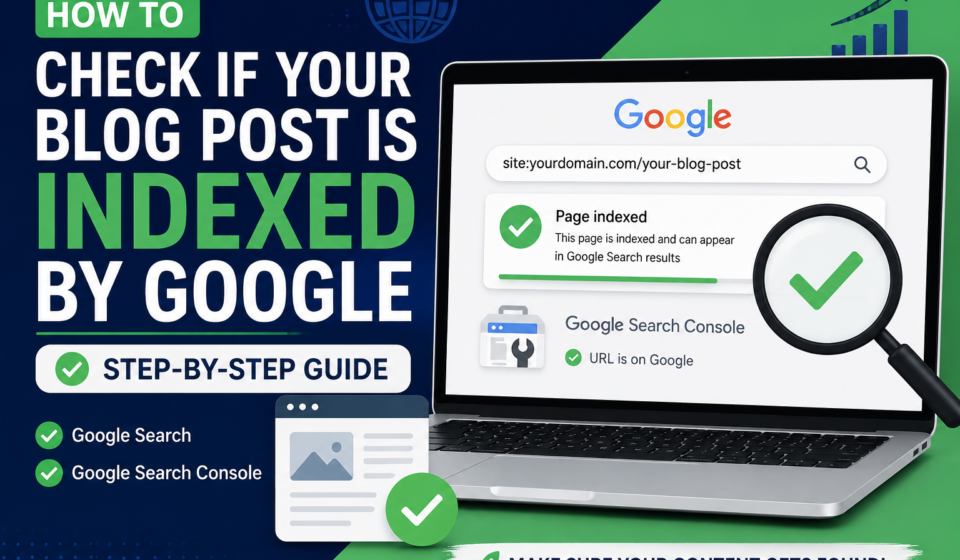

check if your blog post is indexed by Google
You just published a new blog post. You did everything right — good keyword, clean formatting, optimized images. But days pass and there’s still no traffic. The first thing you should check is simple: is your post even indexed by Google?
If a post isn’t indexed, it doesn’t exist for Google — no matter how good it is. In this guide, we’ll go through exactly how to check if your new blog post is properly indexed, what to do if it’s not, and how to avoid this problem in the future.
1. Understand What “Indexed” Actually Means
Before checking anything, it’s important to understand the difference between crawling and indexing.
- Crawling means Googlebot visited your page and read its content.
- Indexing means Google added that page to its database, so it can appear in search results.
A page can be crawled but still not indexed — this happens more often than people think. Being indexed doesn’t guarantee ranking either, but it’s the first requirement. If your post isn’t in Google’s index, it simply won’t show up in search results, ever.
2. Use the Google Search Console URL Inspection Tool
This is the most accurate way to check indexing status. Search Console shows you exactly what Google knows about your specific URL.
Steps:
- Log in to Google Search Console.
- Select your property (your blog).
- Paste your new post’s exact URL into the search bar at the top.
- Press Enter.
You’ll see one of these results:
- “URL is on Google” — your post is indexed and can appear in search results.
- “URL is not on Google” — your post is not indexed yet, and Search Console will usually tell you why (not crawled, crawled but not indexed, blocked by robots.txt, etc.).
This tool gives you the most reliable, direct answer — always check here first before trying anything else.
3. Use the “site:” Search Operator
A quick manual check you can do anytime is the site: search on Google.
How to do it:
- Go to Google and type:
site:yourdomain.com/your-post-url - Press Enter.
If your post shows up in the results, it’s indexed. If nothing appears, it’s likely not indexed yet — though this method is less reliable than Search Console, since Google sometimes takes time to reflect changes here too.
You can also do a broader check with just site:yourdomain.com to see how many total pages from your site are indexed, and compare that number to how many posts you’ve actually published.
4. Check Your Sitemap Status in Search Console
Your sitemap is the map you give Google to help it find all your pages. If your sitemap isn’t submitted or has errors, new posts can take much longer to get discovered.
Steps to check:
- In Search Console, go to the Sitemaps section.
- Confirm your sitemap URL (usually
yourdomain.com/sitemap.xmloryourdomain.com/sitemap_index.xmlfor WordPress with Yoast/RankMath) is submitted and shows “Success.” - Check the number of “Discovered URLs” versus how many are actually indexed.
If your sitemap hasn’t been updated recently or shows errors, that’s often the reason new posts are slow to index. Both WordPress SEO plugins (like RankMath and Yoast) and Blogger generate sitemaps automatically, but it’s worth double-checking they’re working correctly.
5. Check for Indexing Blockers on Your Post
Sometimes a post isn’t indexed because something is actively blocking Google from indexing it. This is a common but often overlooked issue.
Things to check:
- “Noindex” tag — Check your SEO plugin settings (RankMath/Yoast) to make sure the post isn’t accidentally marked “noindex.”
- Robots.txt file — Make sure your robots.txt isn’t blocking the post’s URL or directory.
- Canonical tag issues — If your canonical tag points to a different URL, Google may index that URL instead of your actual post.
- Password protection or draft status — Double-check the post is actually published and public, not still in draft or private mode.
These settings are easy to overlook, especially if you’re using page builders or themes that add SEO settings in multiple places.
6. Compare Crawl Stats in Search Console
Search Console’s Crawl Stats report (under Settings) shows you how often Googlebot is visiting your site overall. If your site is being crawled rarely, new posts will naturally take longer to get discovered and indexed.
What to look at:
- Total crawl requests over the last 90 days
- Average response time (slow sites get crawled less often)
- Any spike in crawl errors
If your site has very low crawl activity, it usually points to a bigger issue — either your site is new, has low authority, or has technical problems slowing Googlebot down.
7. Check Internal Linking to Your New Post
Google discovers new pages faster when they are linked from other pages Google already knows about. If your new post has zero internal links pointing to it, Google may take longer to find it — even if it’s in your sitemap.
What to do:
- Go to 2-3 of your older, already-indexed posts.
- Add a natural internal link pointing to your new post.
- Make sure your new post is also visible somewhere Google frequently crawls, like your homepage or a category page.
This is one of the simplest and most effective ways to speed up discovery, and it also passes some ranking value between pages. If you want a deeper explanation of how internal linking and indexing work together, this guide on why your website is not getting organic traffic covers common technical reasons posts stay invisible to Google.
8. Watch Out for Common Post-Publishing Mistakes
A lot of indexing delays actually trace back to small mistakes made during or right after publishing — not some deep technical SEO problem.
Common issues include:
- Forgetting to remove a “noindex” setting left over from testing
- Publishing a post as a duplicate of existing content
- Broken internal structure (post not linked from any category or menu)
- Missing or broken canonical tags
- Publishing then immediately editing the URL slug, which resets indexing signals
These mistakes are more common than people expect, especially for beginners. This guide on common errors during and after publishing a blog post lists these issues in detail and explains how to avoid them before they slow down your indexing.
9. If AI-Assisted, Make Sure Content Quality Is Solid
Google doesn’t penalize AI-assisted content just for being AI-assisted — but low-quality, thin, or repetitive content (AI or not) can get crawled and still left out of the index, especially on newer or lower-authority sites.
Before assuming it’s a technical issue, ask:
- Is the post genuinely useful and well-structured?
- Does it add something beyond what’s already ranking for this keyword?
- Did you review and edit the AI draft, or publish it as-is?
If you’re unsure whether your content quality is holding back indexing, this guide on can Google detect AI content explains what Google actually evaluates, and this one on how to humanize AI generated content the SEO-safe way can help you improve drafts before they go live.
10. Manually Request Indexing (And Be Patient)
If you’ve confirmed your post isn’t indexed and ruled out blockers, the fastest next step is to manually request indexing.
Steps:
- Open Search Console’s URL Inspection tool.
- Paste your post’s URL and press Enter.
- Click “Request Indexing.”
- Google will run a live test and queue the page for crawling.
This doesn’t guarantee instant indexing, but it usually speeds things up — often within a few hours to a couple of days, though it can take longer on newer sites with low authority.
If your posts consistently take a long time to get indexed even after requesting, it’s worth following a complete process from the start. This guide on how to get a new blog indexed by Google fast walks through the full method that works well in 2026, including sitemap setup, internal linking, and social sharing signals.
Quick Checklist to Verify Indexing
Use this checklist every time you publish a new post:
- Check URL Inspection tool in Search Console
- Confirm with a
site:search on Google - Verify sitemap is updated and error-free
- Check for “noindex” tags or robots.txt blocks
- Review canonical tag settings
- Check crawl stats for overall site activity
- Add internal links from older posts
- Rule out common publishing mistakes
- Confirm content quality is solid, not thin or duplicate
- Manually request indexing if still not indexed after a few days
Final Thoughts
Getting indexed is not automatic, and it’s not always instant — especially for newer blogs. But most indexing delays come down to a handful of common, fixable issues: missing sitemaps, accidental noindex tags, weak internal linking, or simply not requesting indexing manually.
Make it a habit to check your new post’s indexing status within 24-48 hours of publishing, not weeks later. Catching an indexing problem early means you can fix it fast — and start getting the organic traffic your content deserves.