
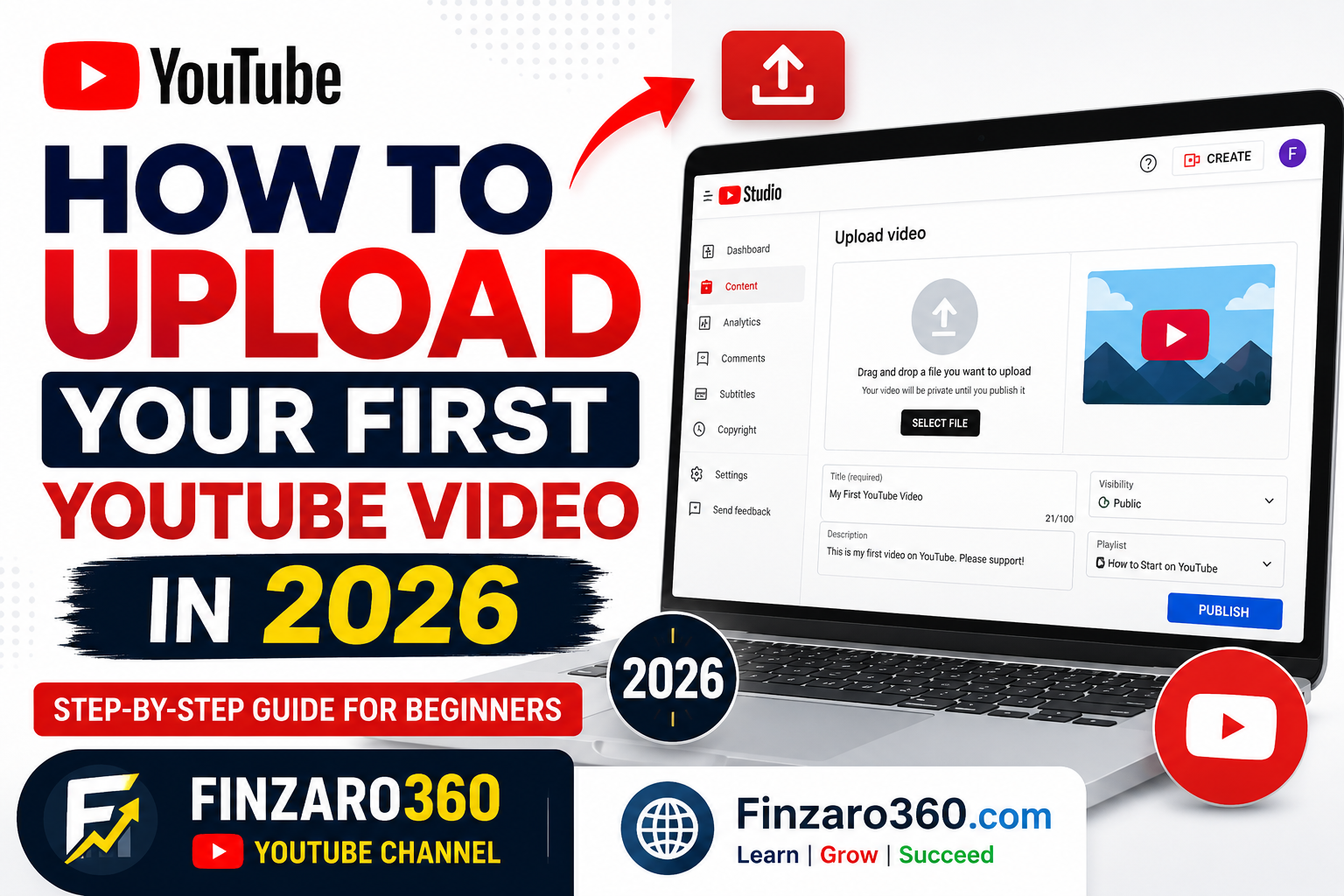

How to Upload Your First YouTube Video in 2026
Published: July 16, 2026 | Finzaro360
So you made your channel. You maybe also fixed your channel settings. Now it’s time for a big step — uploading your first video.
It looks easy. Just click “Upload,” right? But new YouTubers often make small mistakes with the thumbnail, title, tags, and privacy settings. If you do it right the first time, you save a lot of time later.
Here is a simple, easy guide.
Table of Contents
- Before You Upload: Quick Checklist
- Step 1 — Start the Upload
- Step 2 — Add Title & Description
- Step 3 — Add a Thumbnail
- Step 4 — Add Playlist, Audience & Tags
- Step 5 — Choose Visibility & Publish
- Common Mistakes to Avoid
- Final Words
1. Before You Upload: Quick Checklist
Before you open the upload page, get these ready:
- Your video file in MP4 format (this works best), in 1080p or higher
- A thumbnail image (size: 1280 x 720 px, under 2MB, JPG or PNG)
- A simple title — clear and easy to understand, not clickbait
- A short description with a few important words
- Make sure your channel is verified first. This lets you add custom thumbnails and upload longer videos. If you have not done this yet, read how to verify your YouTube channel
2. Step 1 — Start the Upload
- Go to YouTube and log in to your channel
- Click the camera icon at the top right, then click “Upload video”
- Drag your video file in, or click to choose it from your computer
- Wait until it finishes uploading — don’t close the tab
3. Step 2 — Add Title & Description
- Title: Keep it short — under 60 letters. Put your main keyword near the start.
- Description: Write 2–3 easy sentences about the video. Add your main keyword once or twice. Add links (your website, social media, other videos) below.
- Later, add a pinned comment asking viewers to like or subscribe. This helps get more views early on.
4. Step 3 — Add a Thumbnail
Your thumbnail is very important. It makes people click on your video. Tips for beginners:
- Use big, easy-to-read text (3–5 words only)
- Use bright colors so it stands out
- Use a real photo or picture, not a boring stock photo
- Keep the size at 1280×720 pixels
5. Step 4 — Add Playlist, Audience & Tags
- Playlist: Add your video to a playlist if you have one. This keeps people watching longer.
- Audience: Tell YouTube if this video is “made for kids.” This is required by law — answer honestly.
- Tags: Add 5–10 simple tags about your video (don’t spam). This helps YouTube understand what your video is about.
- End screens & cards: Add these to show your next video or playlist at the end.
6. Step 5 — Choose Visibility & Publish
You can choose from 4 options:
- Public — everyone can see it, and it shows in search
- Unlisted — only people with the link can see it
- Private — only you can see it
- Scheduled — pick a date and time, and it goes live by itself
For your first video, choose Public once everything is ready. Then click Publish (or Schedule). Your video is now live!
7. Common Mistakes to Avoid
- Uploading with no custom thumbnail (YouTube picks a random blurry one)
- Adding too many keywords in the title (it looks spammy)
- Leaving the description empty
- Forgetting to verify your channel first
- Publishing without watching the whole video for problems
8. Final Words
Your first video does not need to be perfect. It just needs to be complete. Add a good thumbnail, title, description, and pick the right visibility — and you are already ahead of most beginners. As you upload more videos, also learn YouTube SEO to get more views.
Want more easy guides like this? Visit Finzaro360 for more articles, and subscribe to our channel here: Finzaro360 on YouTube